How-to guides
How to Troubleshoot Content Issues with UHF's Debug Mode
Stream not loading? Learn how to use the Debug Mode in the UHF app to view system logs and troubleshoot ISP blocks or failing playlist servers on your own.
We've all been there: you sit down to watch a movie, you select an item in your playlist, and… nothing happens. The stream refuses to load. Or maybe you're trying to fetch a new playlist and the server times out, or your EPG (Electronic Program Guide) simply won't update.
Sometimes, the standard error messages that appear on the screen just aren't detailed enough to tell you what's actually going wrong. Is it the app? Is it your internet connection? Is it the playlist provider's server?
To help you get to the bottom of these frustrating moments, we built a tool right into the app: Debug Mode.
What is Debug Mode and How to Enable It
Debug mode is a diagnostic tool that tracks and records exactly what the UHF app is doing behind the scenes.
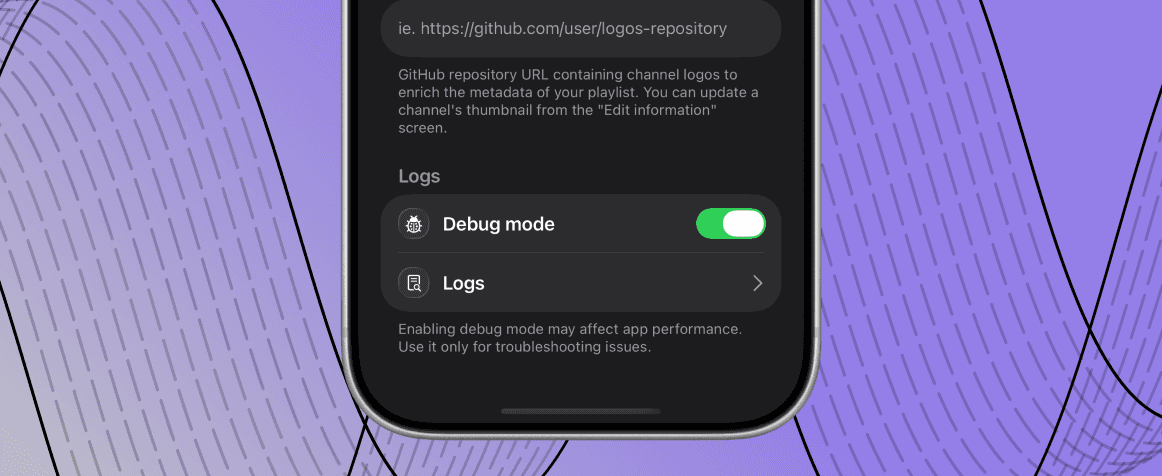
To turn it on, simply navigate to Settings > General and toggle Debug mode on. Once enabled, a new Logs screen will appear enabled beneath the toggle.
Note: Debug mode is disabled by default because tracking all this background activity causes a small performance hit. We recommend turning it on only when you are actively troubleshooting an issue, and turning it back off when everything is running smoothly.
How to Use the Logs
Once Debug mode is running, go ahead and replicate the issue you are having—try to play that broken stream or fetch that failing playlist.
Then, head back to the Logs screen. Here, you will see a list of technical events. To get the most out of this screen:
Expand the entries: Tap or click on any log entry to expand it and read the granular details of the error.
Export and Share: If you know someone who can help you interpret the data, you can export the logs. If you are using iOS, you can easily share these logs directly via AirDrop.
Why We Can't Troubleshoot Your Playlist
At UHF, a massive portion of the emails we receive are from users reporting that their content isn't working.
Here is the reality: 99% of the time, these issues are entirely on the playlist's side or are caused by a networking problem, such as your Internet Service Provider (ISP) actively blocking access to a specific playlist server.
Because UHF is strictly a media player—and we do not host, sell, or control any of the content or servers you connect to—we have absolutely no control over your internet settings or your playlist's uptime.
For this reason, our support team does not respond to inquiries regarding broken streams or failing playlists. It is an endless task for issues we cannot fix.
Instead, we built Debug Mode to empower you. By checking the logs, you can usually figure out exactly where the chain is breaking—whether your ISP is blocking the connection, or your playlist server is returning an error—so you can take the appropriate steps to fix it on your end.