Announcements
Level Up Your UHF Home Screen
Customize your UHF app Home Screen! Learn how to add Trakt lists, custom TMDB feeds, and create beautiful Feeds Collections using gradients and KLIPY GIFs.
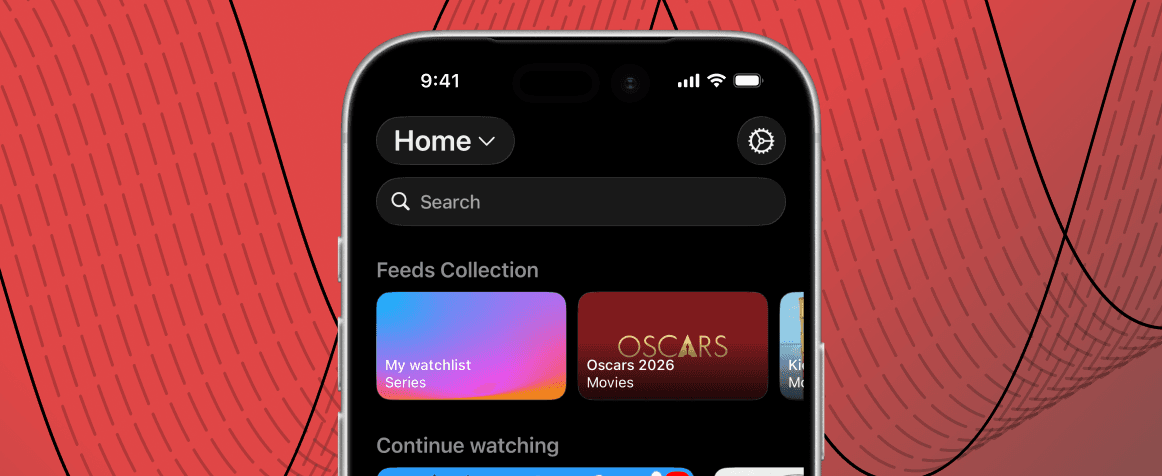
Your UHF Home Screen is your personal entertainment dashboard, and we believe you should have total control over what you see when you open the app. That’s why we are thrilled to introduce a massive upgrade to our customization options!
You can now supercharge your Home Screen by adding dedicated carousels for your favorite Trakt lists and custom TMDB feeds. Even better, we are introducing Feeds Collections: a beautiful new way to group your feeds together using custom gradients, GIFs, and images.
Here is everything you need to know about setting up your ultimate personalized Home Screen.
Bring Your Favorite Lists Front and Center
Tired of digging through menus to find what to watch next? You can now pin specific lists directly to your Home Screen as horizontal scrolling carousels.
Add a Trakt List: Connect your Trakt account to add your personal watchlists, your liked lists (like "2026: Golden Globes" or "Kids Shows"), or manually enter any custom Trakt List ID.
Add a TMDB Feed: Want a feed of just the highest-rated sci-fi movies from the 90s? You can build custom Discover feeds powered by TMDB, filtering by media type, sorting method (e.g., Popularity), original language, and release year.
Introducing "Feeds Collections"
If you have a lot of lists and feeds, adding them all as individual carousels might clutter your screen. Enter Feeds Collections.
A Feeds Collection allows you to group multiple Trakt or TMDB feeds into a single, sleek section on your Home Screen. Instead of scrolling through endless rows of posters, your collections appear as gorgeous, customizable cards (like "My Watchlist Movies" and "My Watchlist Series").
Customize with Gradients, GIFs, and Images
To make your collections truly yours, we've integrated KLIPY directly into the setup flow. When creating a Feeds Collection, you can customize the cover card of each feed with:
Vibrant, colorful Gradients for a clean, modern look.
Animated GIFs (perfect for giving a collection a specific vibe, like a subtle Netflix animation or your favorite movie quote).
High-quality Images searched directly from the web.
Step-by-Step: How to Set It Up
Ready to customize? Here is how to use the new flow:
Open the Home Sections Menu: Scroll down on your Home Screen and tap the Customize button.
Add a New Section: At the bottom of the "Home sections" list, tap the + button.
Choose Your Format: Select whether you want to add a standalone Trakt List, a TMDB Feed, or bundle them together by selecting Add Feeds Collection.
Build a Collection (Optional): If you chose to build a collection, tap the + placeholder to add a Trakt or TMDB feed to it.
Make it Pop: Tap the collection image placeholder to open the KLIPY search. Browse for the perfect gradient, GIF, or image to represent your feed.
Create: Hit Create collection, and your beautifully customized, organized feeds will instantly appear on your Home Screen!
Pro Tip: You can always go back to the "Customize" menu to drag and drop your new sections to reorder them exactly how you like.